Gutenberg Blocks
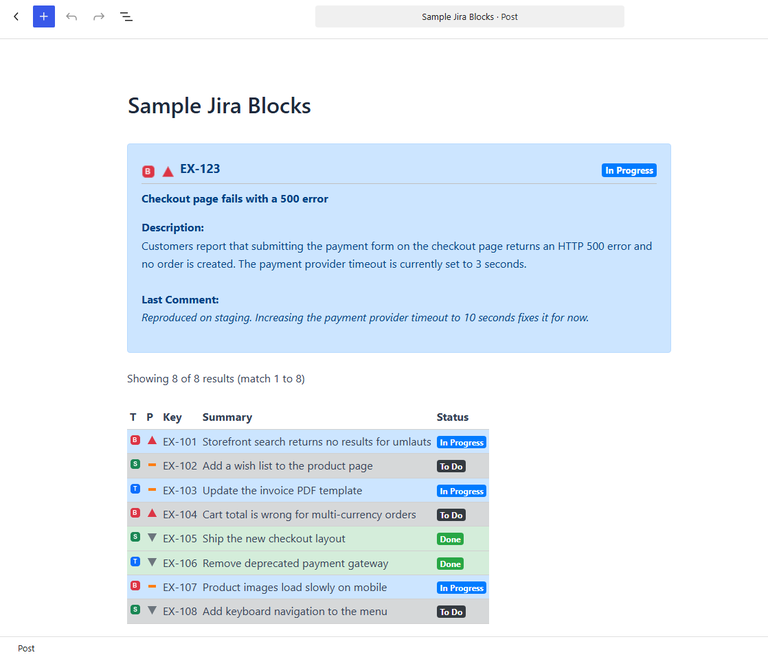
Version 3.0 adds two blocks to the WordPress block editor:
- Jira Issue – the button, inline or panel display of one issue
- Jira Filter – the sortable result table of a JQL query
The blocks use the same rendering code as the shortcodes, so the output is identical. They render on the server and show a live preview in the editor.
Inserting a block
- Edit a page or post with the block editor.
- Click the + block inserter and search for “Jira”.
- Insert Jira Issue or Jira Filter.
- Open the block settings in the sidebar and fill in the host ID and the other fields.
Jira Host ID
The Jira Host ID field takes the post ID of a Jira host, not its title. You can find the ID in the host list or in the address bar when you edit the host:
wp-admin/post.php?post=317&action=edit
In this example the host ID is 317. See Jira Hosts.
Jira Issue block
| Field | Description | Default |
|---|---|---|
| Jira Host ID | The post ID of the Jira host. | |
| Issue Key | The Jira issue key, for example PROJ-123. |
|
| Format | Button, inline or panel. | Button |
| Color | Bootstrap color, or Default for the plugin setting. | Default |
| Summary characters | Maximum summary length for the button and inline formats. Set 0 to hide it. | |
| Description characters | Maximum description length for the panel format. | |
| Outline | Outlined button style. | Off |
| Link to Jira | Link the issue key to the issue in Jira. | Off |
Jira Filter block
| Field | Description | Default |
|---|---|---|
| Jira Host ID | The post ID of the Jira host. | |
| JQL | The JQL query, for example project = PROJ ORDER BY created DESC. |
|
| Fields | Comma-separated columns such as issuetype,priority,key,summary,status. |
|
| Start at | First result to show. | 0 |
| Maximum results | Number of issues in the table. | 50 |
| Headers | Optional comma-separated column headers. | |
| Show result count | Show the “Showing x of y results” line. | Off |
| Link to Jira | Link the issue keys to the issues in Jira. | Off |
| Debug output | Show the raw Jira response below the table to administrators. | Off |
License
The Jira Issue block in button format works without a license. The inline and panel formats and the Jira Filter block need an active license. Without a license, the block preview shows the license message instead of the content.
Empty fields fall back to the defaults on the Options page, just like the shortcode parameters.