Options
Open Jira Connector in the WordPress admin menu to reach the settings page. The settings are grouped in tabs:
- Issue Button
- Issue Inline
- Issue Panel
- Issue Filter
- Status Colors
- Cache
- License
- Advanced
- Plugin Info
Each tab has its own Save Changes button and saves only its own fields. The shortcode and block parameters described in Shortcodes override these defaults for one output.
Issue Button
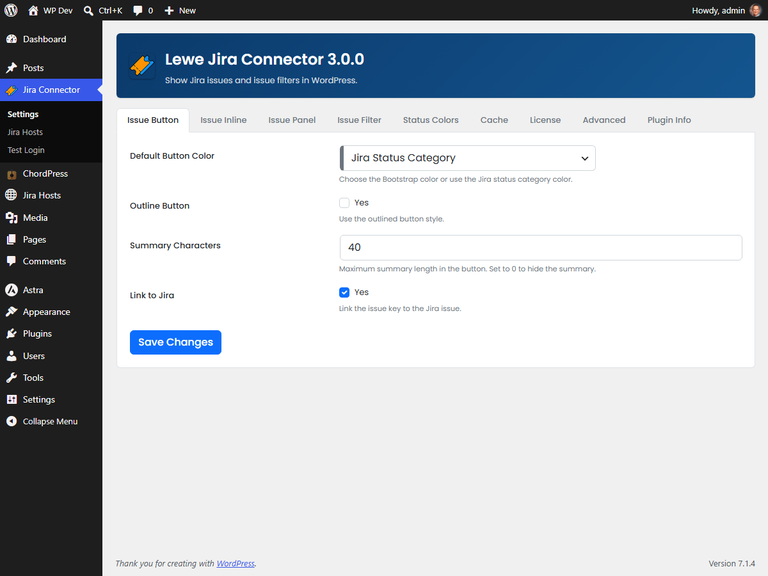
| Setting | Description | Default |
|---|---|---|
| Default Button Color | Bootstrap color for the button, or “Jira Status Category” to follow the issue status. | Jira Status Category |
| Outline Button | Use the outlined button style instead of a filled button. | No |
| Summary Characters | Maximum summary length shown after the issue key. Set to 0 to hide the summary. | 40 |
| Link to Jira | Link the issue key to the issue in Jira. | No |
Issue Inline
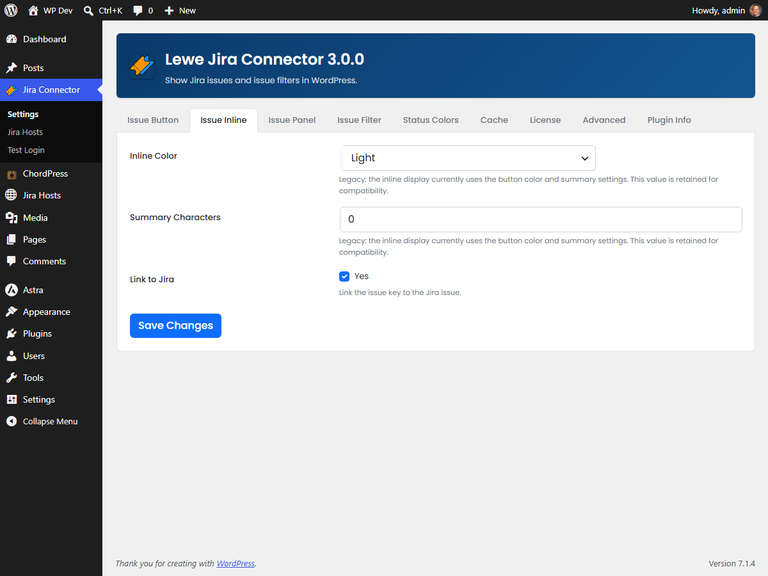
The inline lozenge uses the Issue Button color and summary length. The Inline Color and Summary Characters fields are legacy options retained for 2.x compatibility. Link to Jira applies to the inline display.
Issue Panel
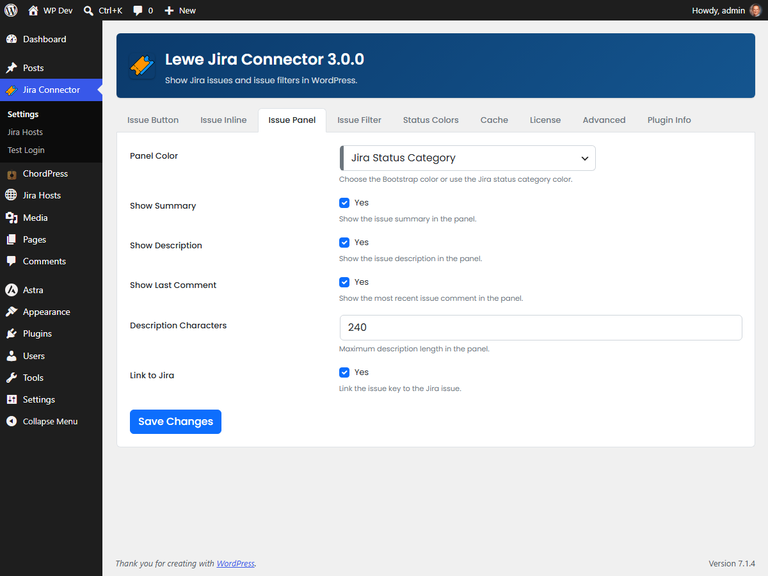
| Setting | Description | Default |
|---|---|---|
| Panel Color | Bootstrap color for the panel, or the Jira status category color. | Jira Status Category |
| Show Summary | Show the issue summary in the panel. | No |
| Show Description | Show the issue description. | No |
| Show Last Comment | Show the last comment of the issue. | No |
| Description Characters | Maximum description length. Set to 0 to show the full description. | 240 |
| Link to Jira | Link the issue key to the issue in Jira. | No |
Issue Filter
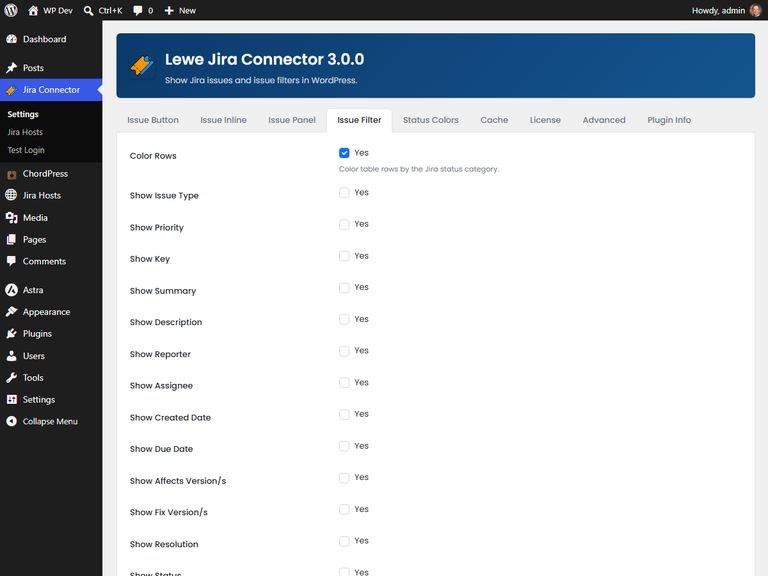
| Setting | Description | Default |
|---|---|---|
| Color Rows | Color each table row by the Jira status category. | No |
| Show … | Default columns: issue type, priority, key, summary, description, reporter, assignee, created, due date, affects version, fix version, resolution and status. | All off |
| Start At | First result to show. Use 0 for the first result. | 0 |
| Maximum Results | Number of issues in the table. | 50 |
| Show Result Count | Show a “Showing x of y results” line above the table. | No |
| Link Keys to Jira | Link the issue keys to the issues in Jira. | No |
The fields and headers parameters of the [jco-filter] shortcode override the default columns for one table.
Status Colors
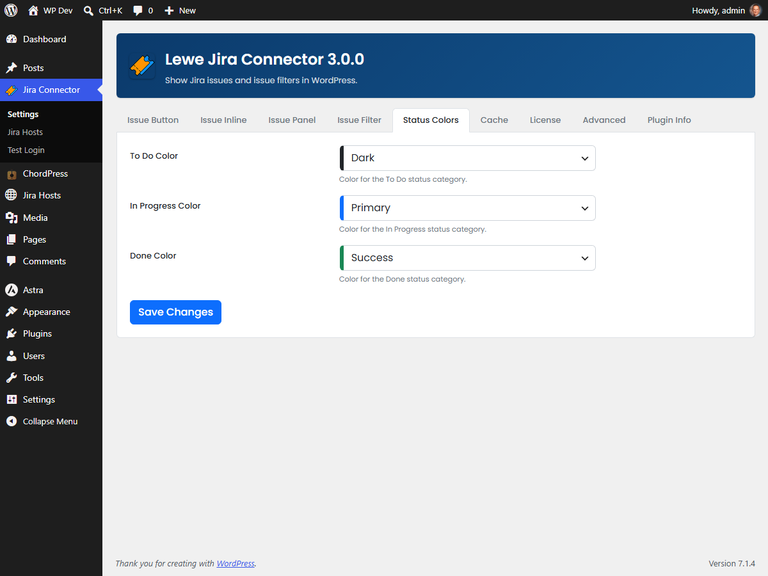
Choose the Bootstrap color for the three Jira status categories: To Do, In Progress and Done. These colors are used when a display is set to follow the Jira status category color.
Cache
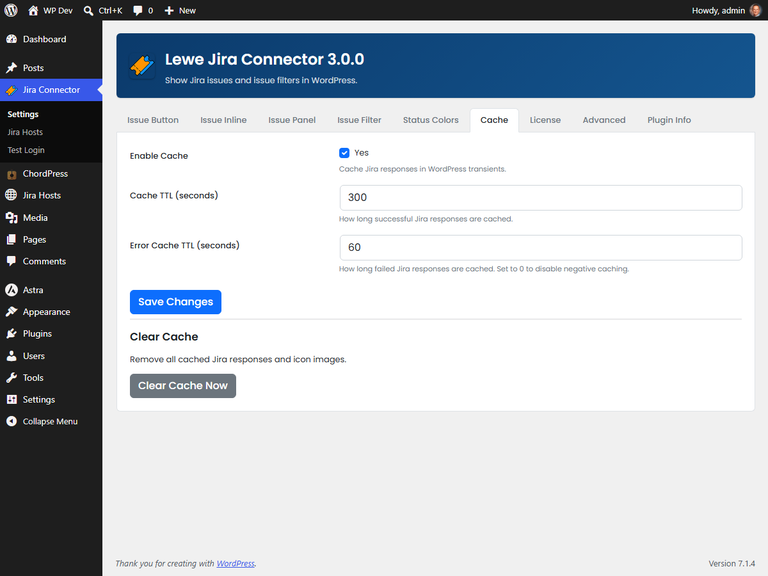
The plugin caches Jira responses and proxied icons in WordPress transients.
| Setting | Description | Default |
|---|---|---|
| Enable Cache | Cache successful Jira responses. | Yes |
| Cache TTL (seconds) | How long successful responses are cached. Set to 0 to cache nothing. | 300 |
| Error Cache TTL (seconds) | How long failed responses are cached. Set to 0 to disable negative caching. | 60 |
| Clear Cache | Remove all cached Jira responses and icon images. Use it after changing data directly in Jira. |
Caching keeps the page fast when several shortcodes show the same issue, and prevents every page view from contacting Jira.
License
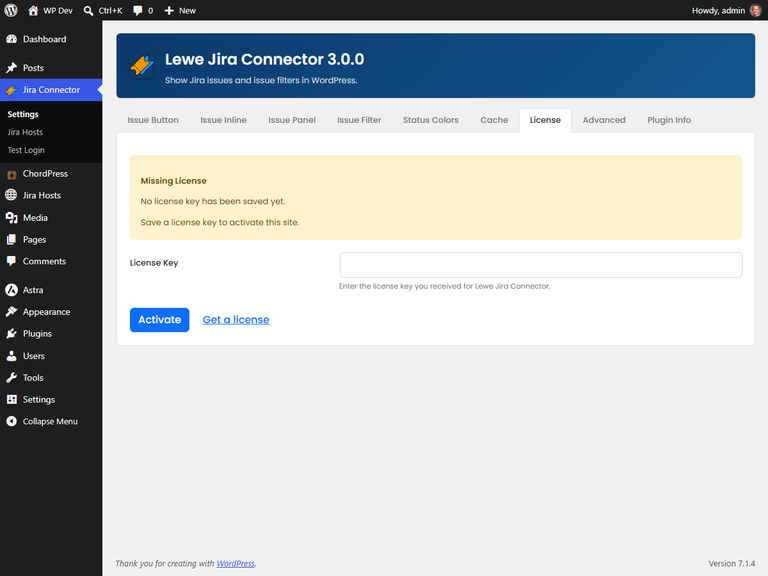
The License tab activates and deactivates the license for this domain. See License.
Advanced
The Advanced tab has two purposes:
- Delete All Data on Uninstall: remove settings, license data, cache and Jira Host posts when the plugin is deleted. It is off by default.
- Legacy options from version 2.x. They are shown for compatibility. Host data is now stored on the Jira Host post, and the license status is loaded from the license server.
Plugin Info
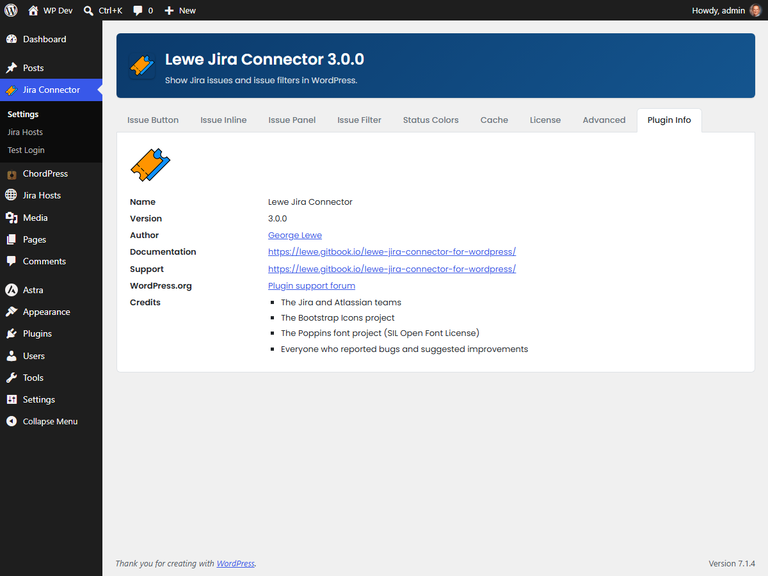
The Plugin Info tab shows the installed version, documentation and support links, and the credits for the bundled Bootstrap Icons and Poppins font.