Database Management
Optimize Tables
| Button | Description |
|---|---|
| Optimize Tables | Initiates a MySQL table optimization |
TeamCal Neo 6 uses InnoDB tables. On InnoDB, optimizing rebuilds the tables, which can take a while on large databases.
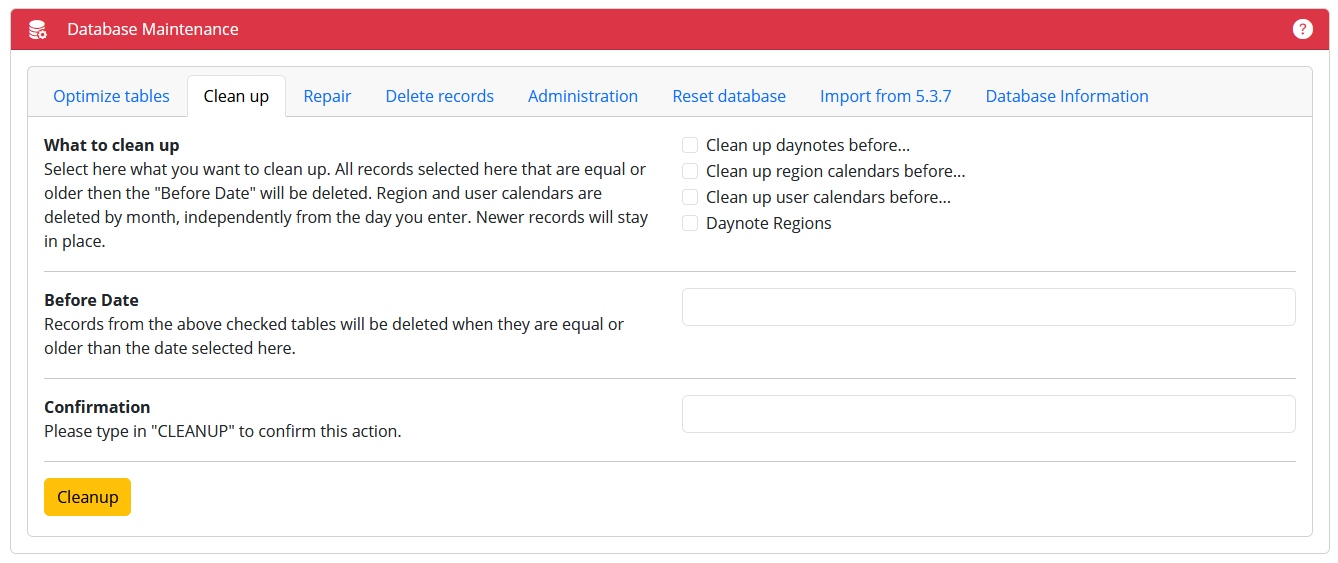
Clean Up
The clean up feature allows to delete obsolete records from the past. You select what to clean up (daynotes, holidays, region calendars, user calendars), enter a "Before Date" and type CLEANUP to confirm. Records equal to or older than that date are deleted. Region and user calendars are deleted by month, independent of the day you enter. Newer records stay in place.
| Button | Description |
|---|---|
| Clean Up | Cleans up the selected tables |
Repair
The repair feature allows you to check your current database structure against the one distributed with the release you have installed. It compares tables, columns, indexes, foreign keys, check constraints and the storage engine (InnoDB), and it also looks for missing configuration entries. A dialog lists what it found and lets you confirm the fixes. Make a database backup first. Run Repair until it reports no issues.
| Button | Description |
|---|---|
| Repair | Check database structure |
Delete Records
The delete feature lets you remove all records of the selected kind: users (except "admin"), groups, custom permission schemes (except "Default"), messages, orphaned messages, system log entries and archived records. Type DELETE to confirm. Patterns and regions cannot be deleted here.
| Button | Description |
|---|---|
| Delete Records | Deletes the selected records |
Administration
TeamCal Neo does not offer an own export/import feature anymore. Why create the wheel twice when there are more capable and secure free applications out there to manage databases, e.g. phpMyAdmin. What you can do here is enter the URL to your favorite database management tool, save it and launch it then by clicking/tapping on [ Database Administration ].
| Button | Description |
|---|---|
| Save | Saves the link to your database administration tool |
| Database Administration | Launches the link given in the URL field. If no link is saved, the button will not show. |
Reset Database
| Button | Description |
|---|---|
| Reset Database | Will replace all your information with the installation sample database. |
Import from 5.3.7
This tab imports the data of a TeamCal Neo 5.3.7 installation into this one. It replaces all data of this installation and is meant for a fresh installation only. You have to type IMPORT to confirm. See Upgrading for the full procedure.
| Button | Description |
|---|---|
| Check old installation | Checks whether the old installation can be imported |
| Start import | Imports the data of the old installation |
TeamCal Pro Import
TeamCal Neo is not compatible with TeamCal Pro anymore. However, you can import core data from TeamCal Pro, like user accounts, if you have used TeamCal Pro before and want to migrate to TeamCal Neo. I recommend to try this with a test database first.
| Button | Description |
|---|---|
| Import | Will launch the TeamCal Pro import page. |
Database Information
The Database Information tab shows some basic information about your database connection and server, like the server and client version.