User Import
Via the button “Import” on the User List page you can get to this User Import page.
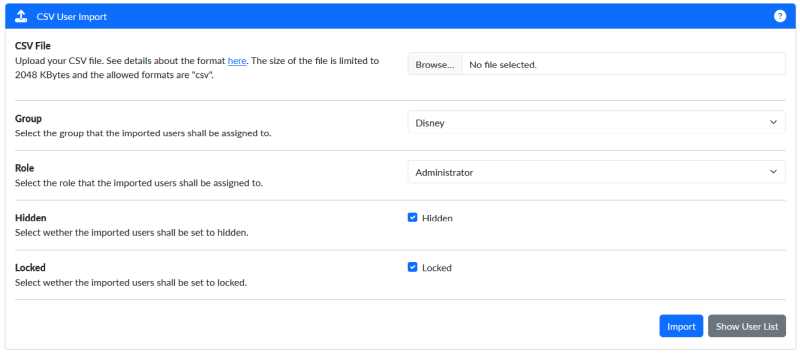
CSV File
TeamCal Neo allows a bulk user import via a CSV file (CSV = comma separated values). A CSV file is a plain text file, containing one line of text for each user to import. The file extension must be “.csv”.
Each line must contain five values in the following sequence:
- Username
- Firstname
- Lastname
- E-mail address
- Gender (male or female)
Each value must be separated by a semicolon “;”.
Each value must be in quotes.
"butch";"Butch";"Cassidy";"butch@holeinthewall.com";"male"
"sundance";"Sundance";"Kid";"sundance@holeinthewall.com";"male"
"jdunbar";"John";"Dunbar";"john.dunbar@wolves.com";"male"
"sconnor";"Sarah";"Connor";"sconnor@resistance.com";"female"
"jtkirk";"James T.";"Kirk";"jtkirk@enterprise.com";"male"
"dtargaryen";"Daenerys";"Targaryen";"dtargaryen@got.com";"female"
You can find a sample CSV file in the sql folder of the installation directory.
Import Process
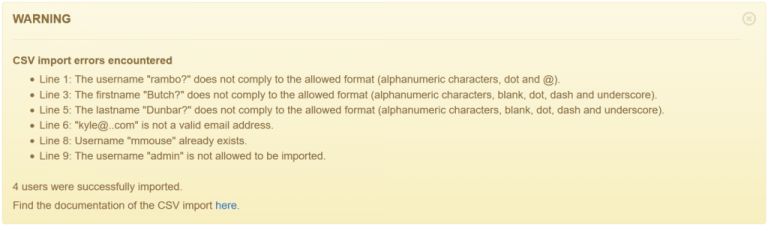
TeamCal Neo will go through each line and check each value. The following errors will be caught:
- Less or more than 5 columns
- Incorrect formats of username, lastname, firstname or E-Mail address
- Incorrect gender
- Username already exists
- Username = “admin” (not allowed for import)
Each line where one of these errors exist will be skipped.
Each line that is OK will be imported.
A detailed message at the end of the import will show the result. Here are two examples:

Options
| Filter | Function |
|---|---|
| Group | Select the group that all imported users will be assigned to. |
| Role | Select the role that all imported users will be assigned to. Default is “User”. |
| Hidden | With this option selected, all imported users will be set to “hidden”. |
| Locked | With this option selected, all imported users will be set to “locked”. |
Buttons
| Button | Function |
|---|---|
| Import | Will start the import |
| Show User List | Will go back to the User List page |