Vehicle Detail
Open a vehicle from the vehicle list. The detail page is the home of the vehicle.
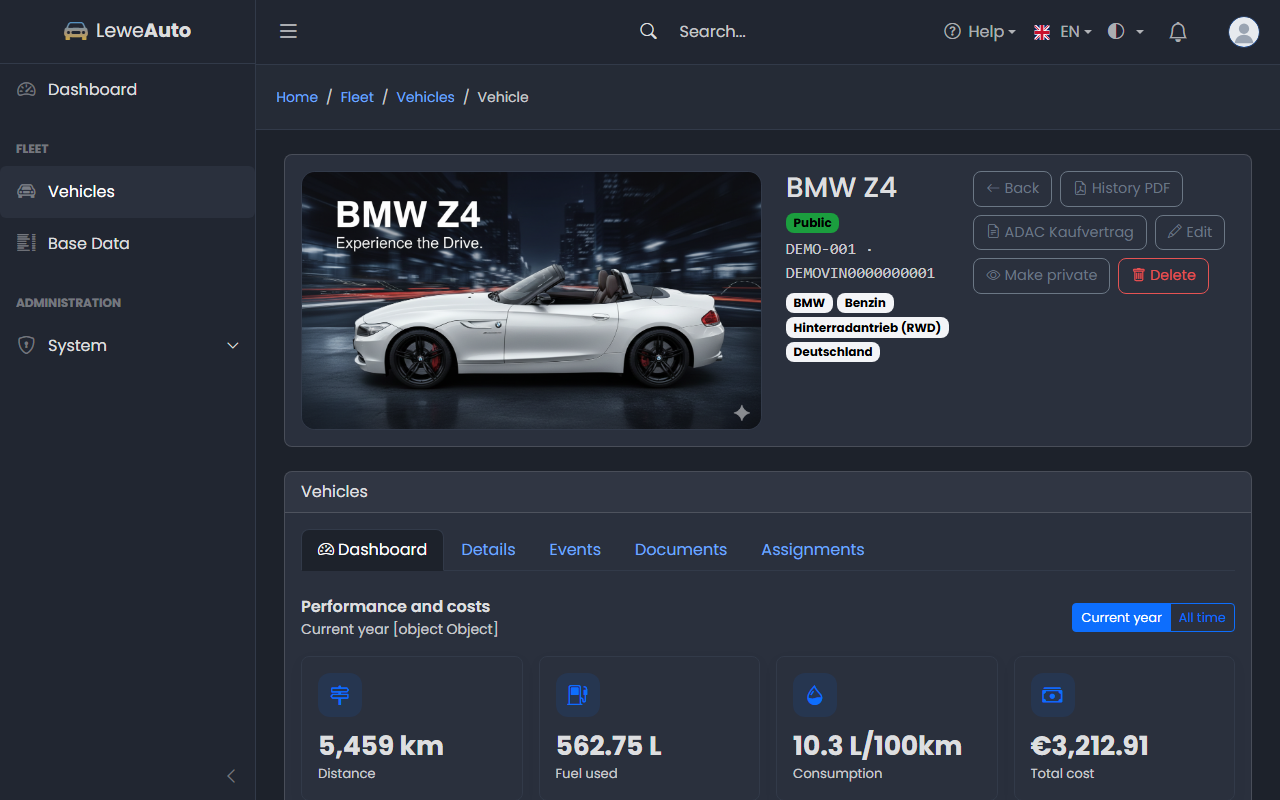
Header
The header shows the vehicle image, the title (manufacturer and model), the plate and VIN, the visibility badge and badges such as EV or PHEV. The action buttons depend on your permissions:
| Button | Permission | What it does |
|---|---|---|
| History PDF | view_vehicle |
Opens a sale-ready PDF with vehicle data, charts and events |
| ADAC Kaufvertrag | view_vehicle |
Downloads a prefilled ADAC purchase contract |
| Edit | edit_vehicle |
Opens the vehicle form with image and assignments |
| Make public/private | publish_vehicle |
Toggles visibility for all signed-in users |
| Delete | delete_vehicle |
Deletes the vehicle with all events and documents |
Only users with edit_vehicle or delete_vehicle see the corresponding buttons. The public/private toggle is a separate permission (publish_vehicle).
Tabs
Dashboard
The default tab. Shows the KPIs and charts for the vehicle. Use Current year and All time to change the period. See Vehicle Dashboard.
Details
The full vehicle data and a summary of the most important figures. Electric vehicles also show the battery data, ranges, charging power and equipment.
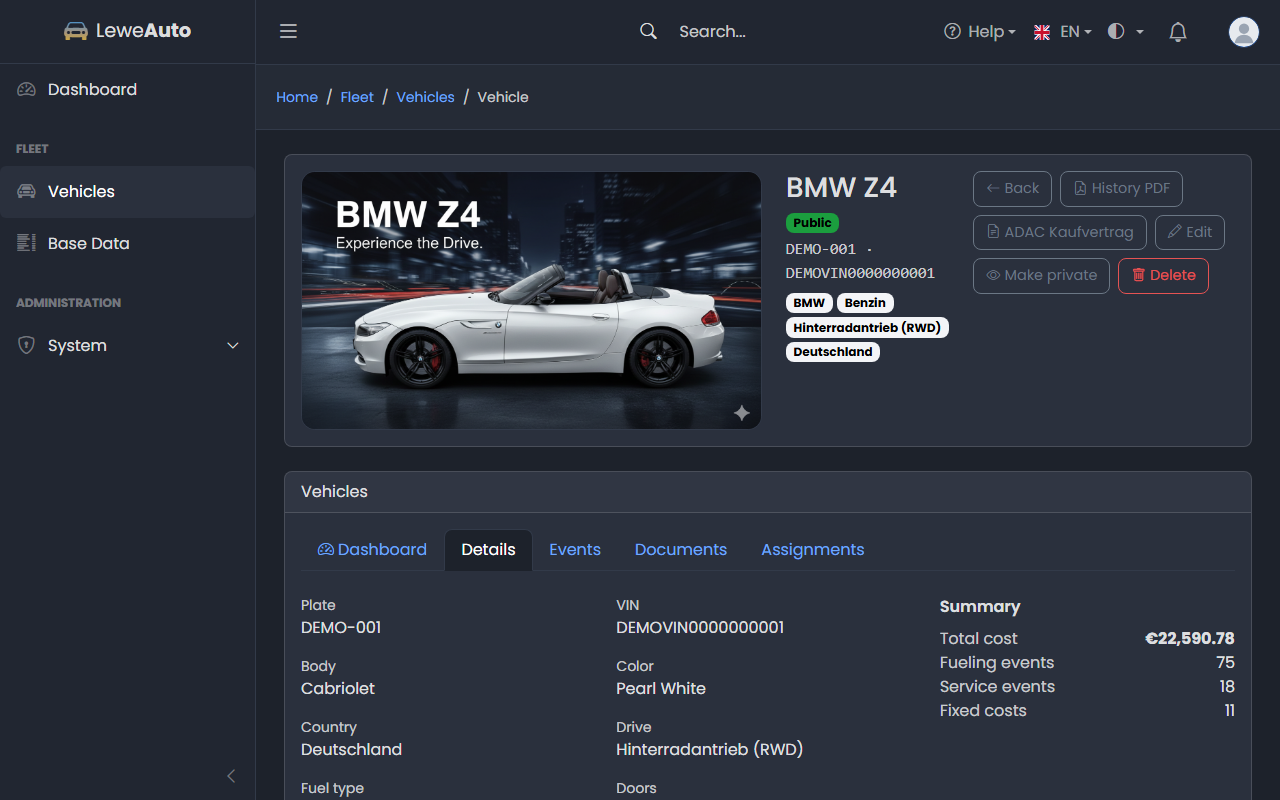
The values reflect your preferred units. The stored data stays metric.
Events
The event records, grouped by type:
- Fueling - petrol, diesel, gas and similar
- Charging - electric energy, shown for electric and plug-in hybrid vehicles
- Service - inspections, repairs and battery checks
- Fixed costs - insurance, taxes, leasing and similar
Each sub-tab has an Add button and row actions. See the event pages for the fields and rules.
Documents
Upload PDF, PNG, JPG, GIF, WEBP or TXT files up to 10 MB and open or delete them. See Documents.
Assignments
Shows the users and groups that may see the vehicle. Users with assign_vehicle can click Manage and change the selection.
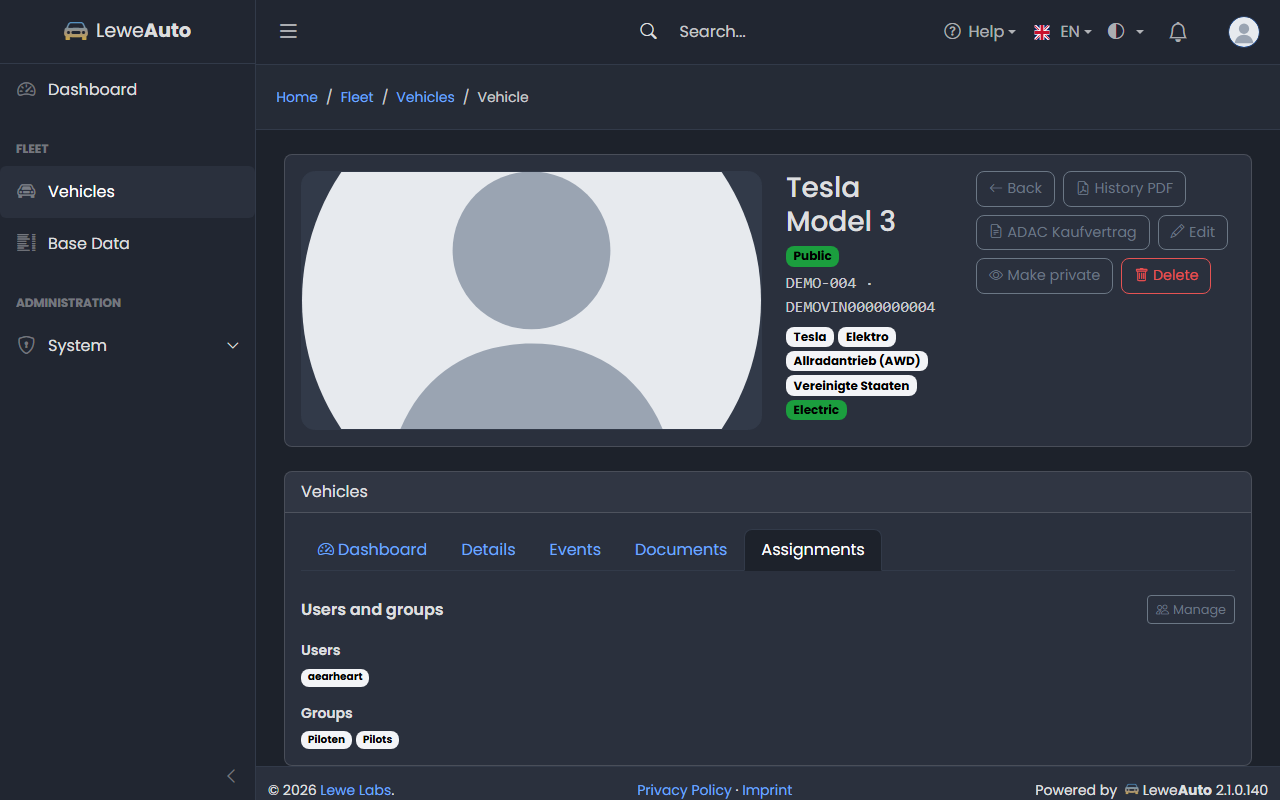
Assignments work together with visibility:
- Every assigned user sees the vehicle, even when it is private.
- Every member of an assigned group sees the vehicle.
- Public vehicles are visible to everyone, assigned or not.
- Removing an assignment hides a private vehicle from that user.
Edit the vehicle
Edit opens the form in three tabs:
- Vehicle data - the same fields as when creating the vehicle
- Vehicle image - current image and upload (PNG, JPG, GIF or WEBP, up to 1 MB; uploads immediately)
- Assignments - users and groups; saved with Save vehicle
Changes are recorded in the audit log.
Delete the vehicle
Delete asks for confirmation and removes the vehicle including all its events and documents. This cannot be undone. Use the History PDF first if you need a record for your files.
Deleting a vehicle also deletes its fueling, charging, service and fixed-cost history. Export the history PDF before deleting a vehicle that is being sold or replaced.