Users
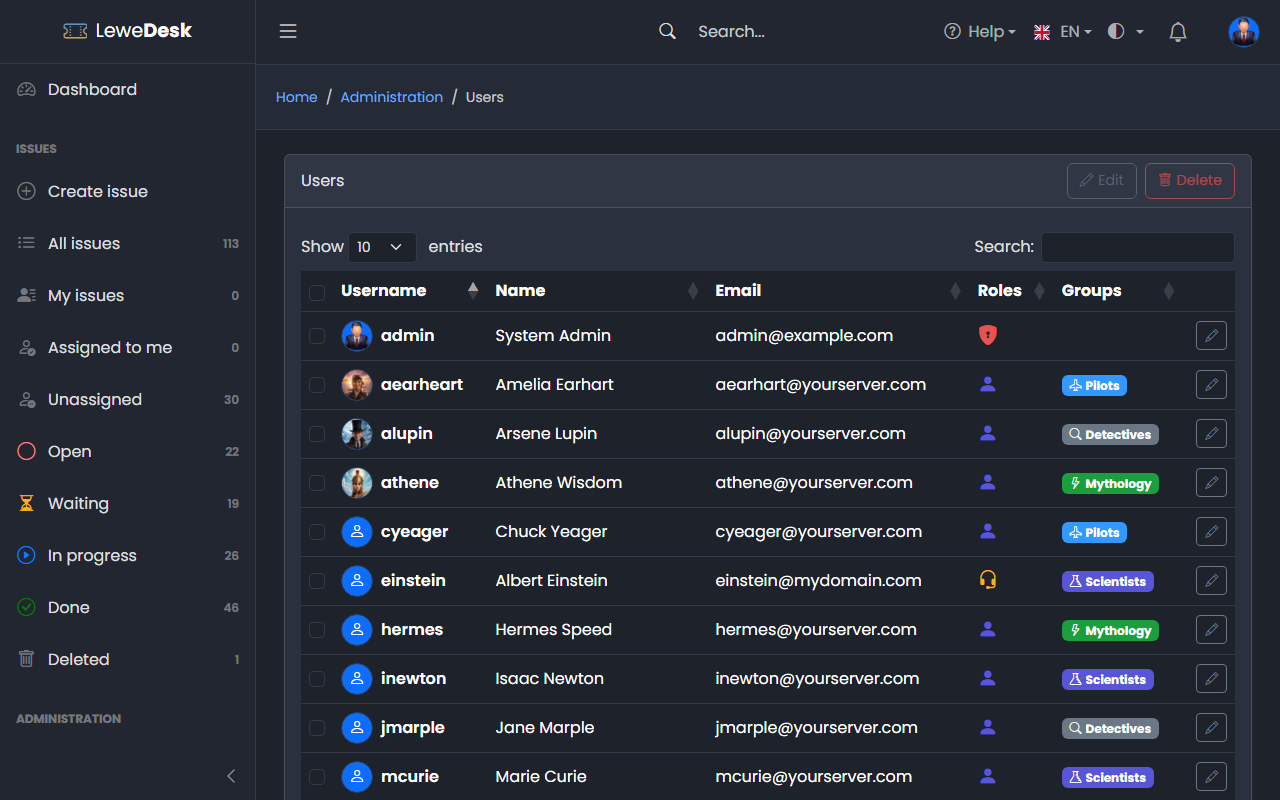
The list shows username, name, email, roles, groups and the two factor authentication status (shield icon) of every account.
Users create their own accounts on the registration page (see Login and Registration). Administrators then assign roles and groups here. Administrators can also create accounts with Add. When LDAP or OIDC authentication is active, the registration is switched off and Add is the only way to create an account.
Buttons
| Button | Function |
|---|---|
| Add | Opens the Add page to create a user |
| Edit | Opens the Edit page for the selected user (or the pencil in the row) |
| Delete | Deletes the selected users after a confirmation |
Add User
Fill in username (3 to 50 characters: letters, digits, _, . and -; it cannot be changed later), email, names, roles and groups, and click Save. Without LDAP you also set the first password (at least 4 characters). With LDAP no password is asked: the user logs in with the LDAP password, and the username must be the one used in LDAP. With OIDC no password is asked either: the username must equal the preferred_username at the identity provider. The creation is recorded in the Audit Log (user.created).
Edit User
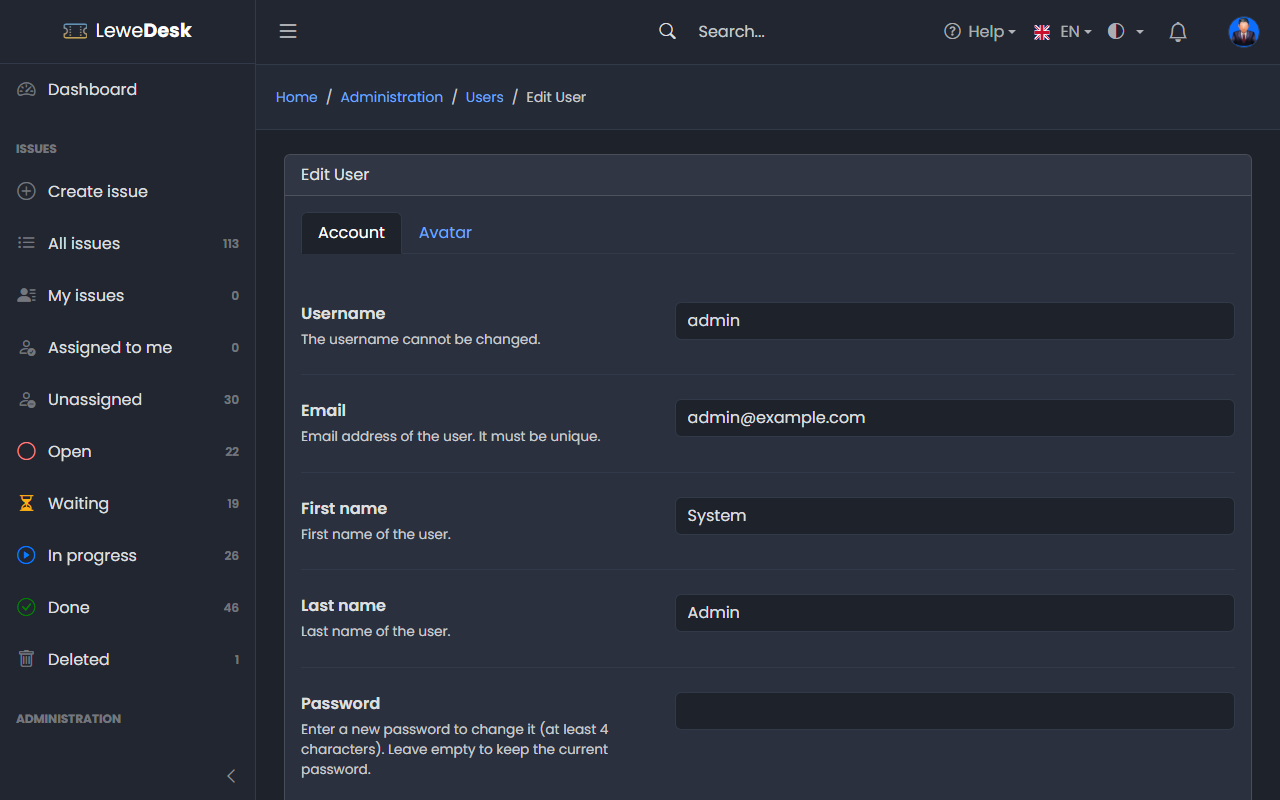
Account tab
| Field | Description |
|---|---|
| Username | The username cannot be changed |
| Email address of the user. It must be unique. | |
| First name | First name of the user |
| Last name | Last name of the user |
| Password | Enter a new password to change it (at least 4 characters). Leave empty to keep the current password |
| Roles | Roles assigned to the user. Hold Ctrl (Cmd) to select several. |
| Groups | Groups the user belongs to. Hold Ctrl (Cmd) to select several. |
| Two factor authentication | Shows whether the user has set up 2FA. Reset 2FA switches it off (see below). |
With LDAP authentication the password field is replaced with a note for every user except admin: the password is managed in LDAP and cannot be changed here. The user list shows an LDAP badge next to these users. With OIDC authentication it is the same, with an SSO badge.
Avatar tab
Select the picture that is shown for the user. Users can also change their own avatar in their profile.
Resetting two factor authentication
If a user lost the device with the authenticator app, click Reset 2FA in the Account tab of the user and confirm. The user can then log in with the password only. If 2FA is mandatory (see Settings), the user has to set it up again at the next login. Users can only set up 2FA for themselves.
The reset is recorded in the Audit Log (auth.2fa_reset), with the administrator as the actor and the user as the target. The same goes for changes to an account (email, names, password, roles, groups) and for deleting it.
Assigning issues: the role Agent
Only users with the role Agent can be assigned to issues. Give the role to every member of your support team. If a user loses the role Agent, their assignments are cleared.
Deleting users
If a user is a participant in issues (as reporter, assignee, commenter or watcher), the confirmation dialog tells you how many. After the deletion their name is replaced with Deleted user in these issues. The issues themselves stay.
Deleting a user cannot be undone.