Issue Actions
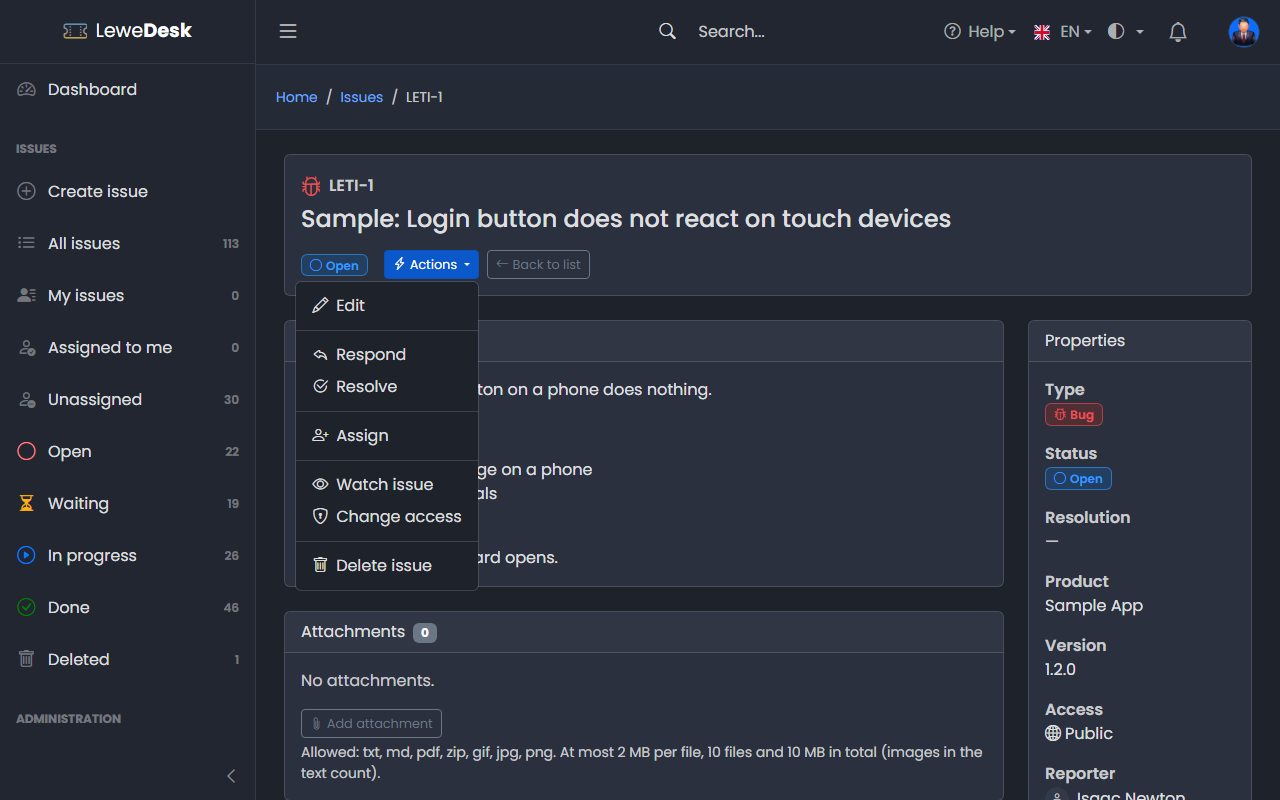
The Actions button on an issue opens a menu. It only lists the actions that you may perform on this issue at this moment. Some actions open a dialog where you add a comment or make a selection.
Overview
| Action | Who | When | Effect |
|---|---|---|---|
| Edit | Agents, Administrators | always | Opens the Edit Issue page |
| Respond | Everybody who may comment | status is not Resolved or Closed | Adds a comment and changes the status (see below) |
| Resolve | Agents, Administrators | status is not Resolved or Closed | Sets the resolution and the status Resolved |
| Close | Reporter, Agents, Administrators | status is Resolved | Sets the status Closed |
| Reopen | Reporter, Agents, Administrators | status is Resolved or Closed | Adds a comment, sets the status Open and clears the resolution |
| Assign | Agents, Administrators | always | Assigns the issue to an Agent |
| Assign to me | Agents | not yet assigned to you | Assigns the issue to you |
| Watch issue | Logged in users | you do not watch it yet | You get notifications about the issue |
| Unwatch issue | Logged in users | you watch the issue | You stop getting notifications |
| Change access | Reporter, Agents, Administrators | always | Changes who may see the issue |
| Move to another product | Agents, Administrators | always | Moves the issue to another product. The issue gets a new key. |
| Delete issue | Agents, Administrators | always | Hides the issue from everybody but the support team |
| Restore issue | Agents, Administrators | issue is deleted | Brings a deleted issue back |
Respond
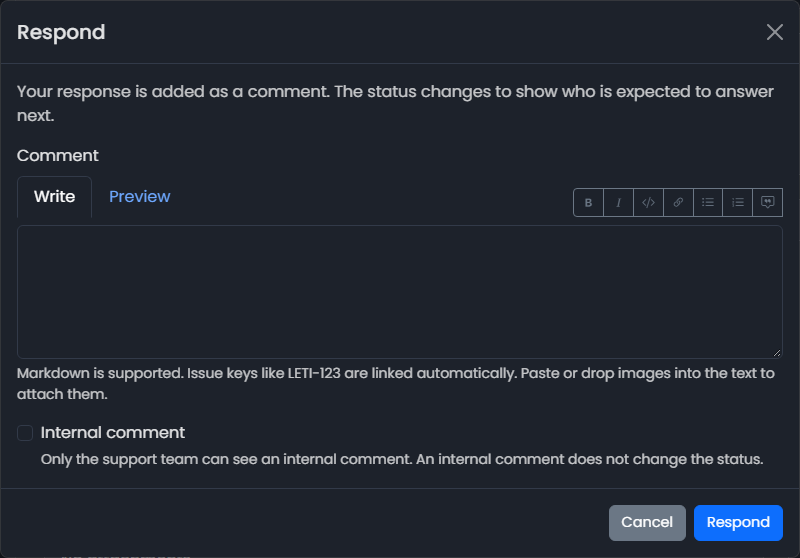
Enter a comment (mandatory) and click Respond. The comment is added to the issue. The status changes to show who is expected to answer next:
| Who responds | New status |
|---|---|
| The reporter | Waiting for agent |
| An Agent or Administrator | Waiting for customer |
| Anybody else | no change |
Agents can tick Internal comment. An internal comment is only visible to the support team and does not change the status.
The comment form at the bottom of the issue has a Respond with comment button that does the same without opening a dialog. See Comments.
Resolve
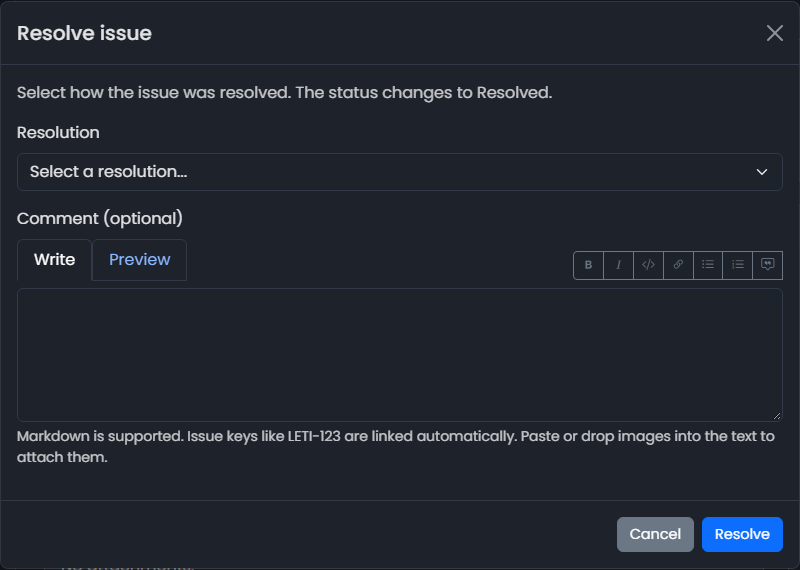
Select the resolution (mandatory), optionally the fixed version (the version of the product that contains the fix; the issue then appears in its release notes), and optionally add a comment. The field is only shown when the product has versions, and left empty it keeps the fixed version the issue has. The status changes to Resolved. The reporter is notified and can Close the issue to accept the solution or Reopen it.
Close
Sets the status to Closed. A closed issue takes no more comments and attachments. The resolution is kept. To continue, use Reopen.
Reopen
Say why the issue is reopened (mandatory). The status changes to Open and the resolution is cleared.
Assign
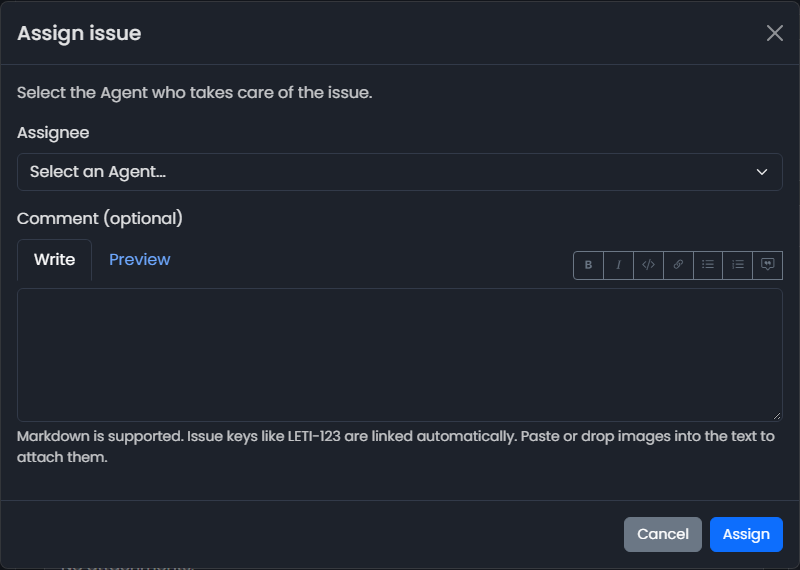
Select the Agent who takes care of the issue and optionally add a comment. Only users with the role Agent can be assigned. Select Unassigned to remove the assignment.
Change access
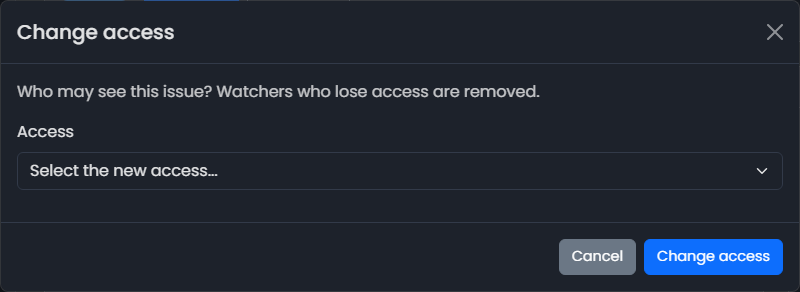
Select who may see the issue. Watchers who lose access are removed.
A reporter can only restrict the access of their issue (Public → Registered → Reporter only), not widen it again. Agents and Administrators can select any value.
Move
Select the new product (mandatory) and optionally add a comment. The issue gets the next number of that product, so its key changes (for example from LD-12 to WEB-7). The old key keeps working: links, bookmarks and mails with the old key still lead to the issue. The affected version and the fixed version are cleared, because versions belong to a product. The move is recorded in the History.
An old key leads to the issue as long as no product uses that key itself.
Delete and restore
Deleting is a soft delete: the issue is only hidden. Attachments are kept. Deleted issues are listed in the quick view Deleted (see List Issues), where they can be restored.