Quick Start Guide
This guide takes you from the first login to a resolved issue in a few minutes.
1. Log in or register
Open LeweDesk in your browser. Public issues can be read without an account. To report an issue you need to log in.
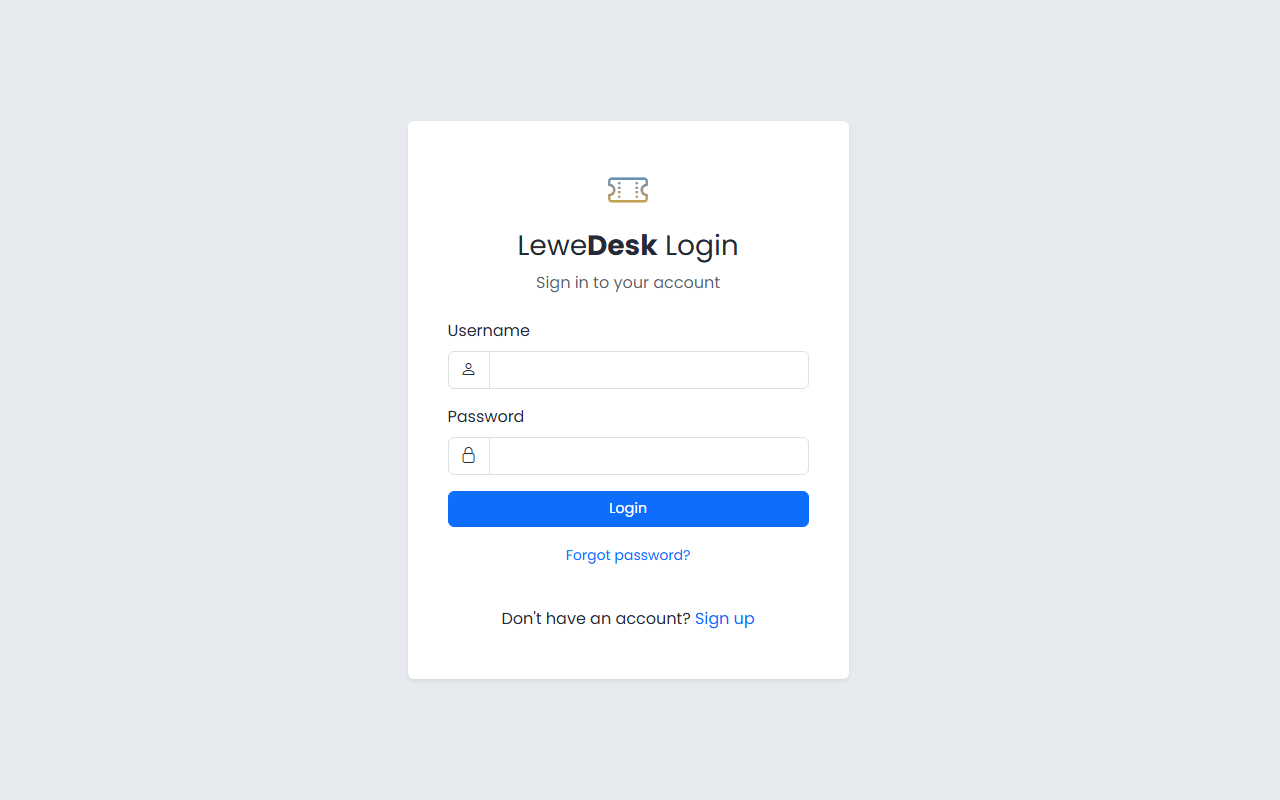
Do you not have an account yet? Click the registration link on the login page. See Login and Registration.
2. Create an issue
Click Create issue in the sidebar, select a type, enter a summary and a description and click Create issue.
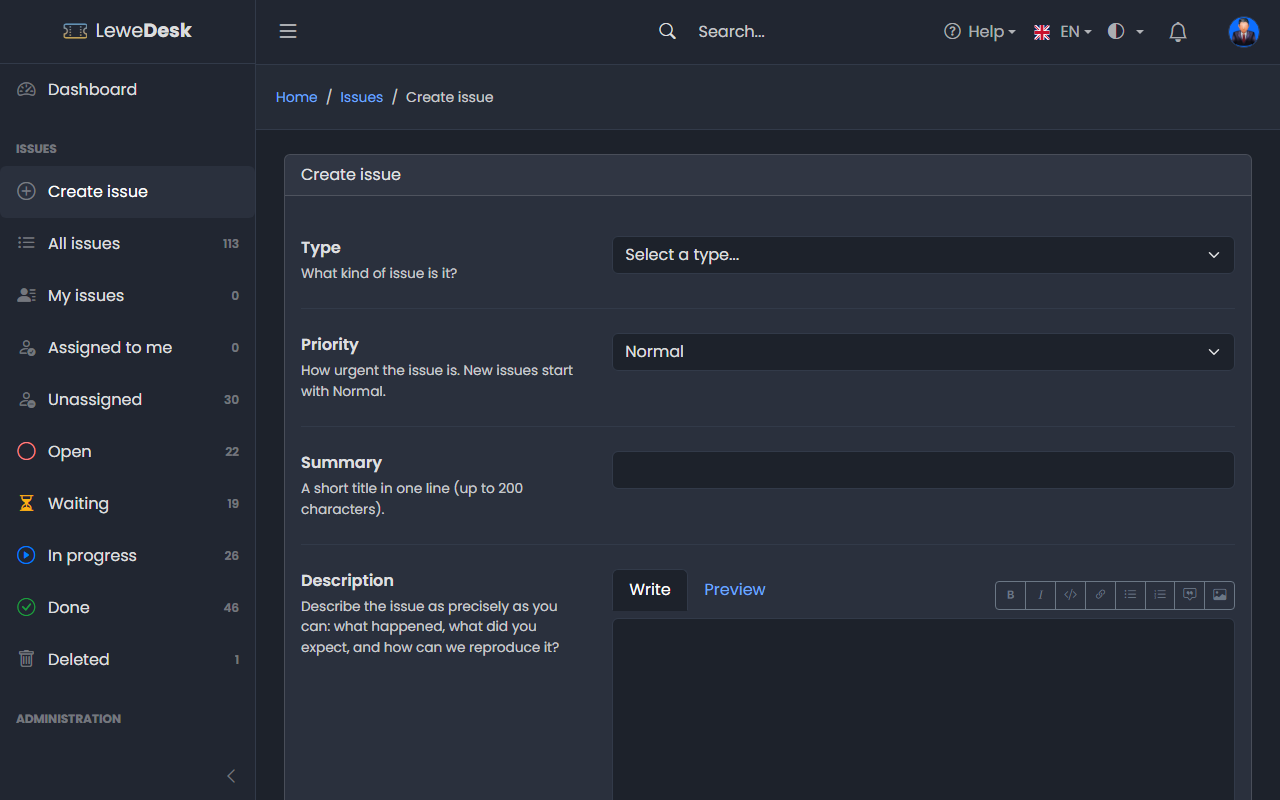
The issue gets a key such as LD-123. You and the support team are notified. See Create Issue.
3. Follow your issue
Open My issues in the sidebar to see the issues you reported. Open an issue to read comments and see its status. You can answer with Respond with comment below the comment field, with Actions → Respond, or just add a comment with Add comment.
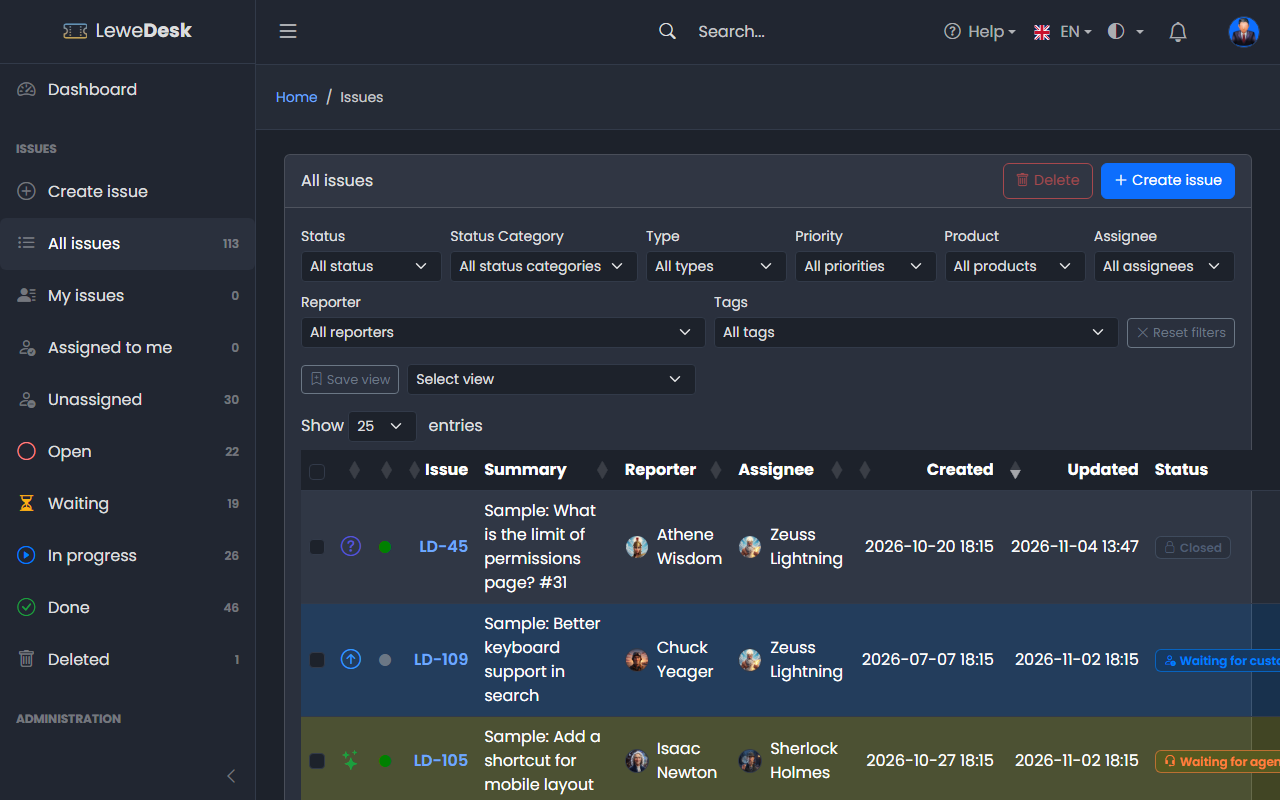
4. For the support team: work on an issue
Agents see all issues. A typical flow looks like this:
- Open Unassigned in the sidebar and open an issue
- Click Actions → Assign to me
- Click Respond with comment below the comment field (or Actions → Respond) to ask a question or answer. The status changes to Waiting for customer.
- When the problem is solved, click Actions → Resolve and select a resolution. The status changes to Resolved.
- The reporter (or you) closes the issue with Actions → Close
See Issue Actions for all actions.