Profile
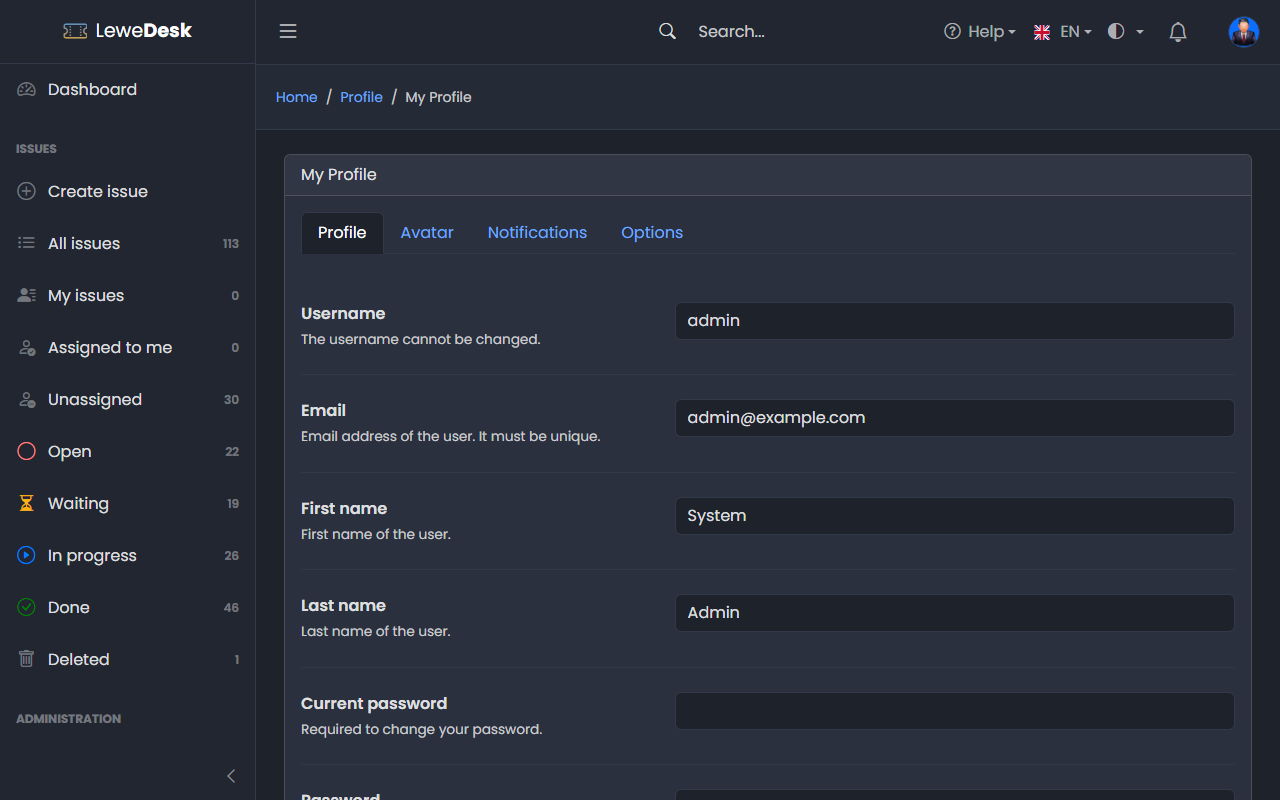
Open your profile from the user menu in the top bar (click your avatar, then Profile).
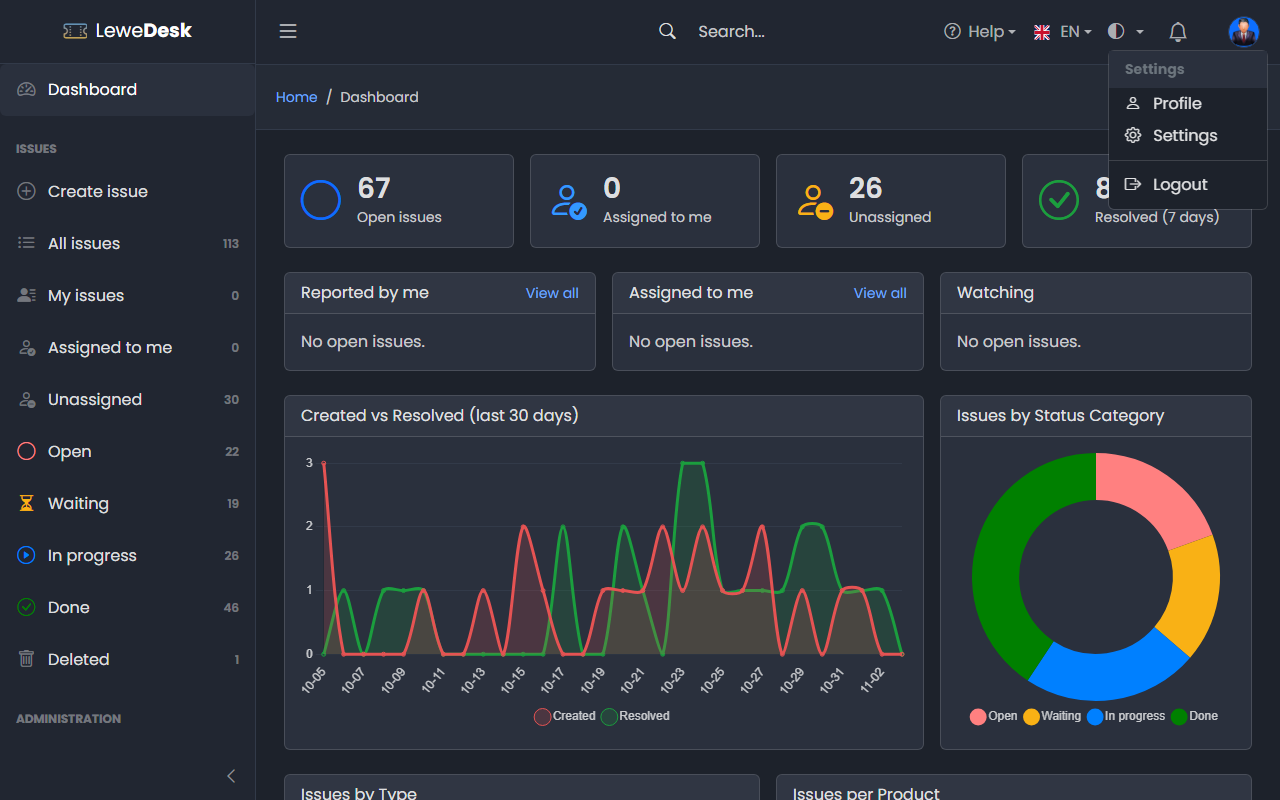
Profile tab
| Field | Description |
|---|---|
| Username | Your login name (cannot be changed) |
| Your email address. It must be unique. Notifications are sent here. | |
| First name, Last name | Your name |
| Current password | Required to change your password |
| Password | Enter a new password to change it (at least 4 characters). Leave empty to keep your current password. |
| Confirm new password | Repeat the new password |
Click Save.
If your administrator uses LDAP authentication, your password is managed outside of LeweDesk. The password fields are then replaced with a note and cannot be used. Change your password where you changed it before.
The same applies if you sign in with SSO (OIDC authentication). The 2FA tab is not shown then, because two factor authentication is handled by your identity provider.
Avatar tab

Your avatar is shown in the top bar and next to your name on issues.
- Upload your own: PNG, JPG, GIF or WEBP, up to 1 MB. The image is shown as a circle, so a square image works best.
- Sample avatars: click an image to use it.
Notifications tab
Choose per event whether you get an email and/or an in-app notification. See Notifications.
Custom Views tab

Lists the custom views you saved in the issue list with their name, whether they are Private or Shared, and the time of the last change.
| Button | Function |
|---|---|
| Edit | Opens a dialog with the name, the Share with all registered users switch and the eight filters |
| Delete | Deletes the view after a confirmation. It disappears for all users it was shared with. |
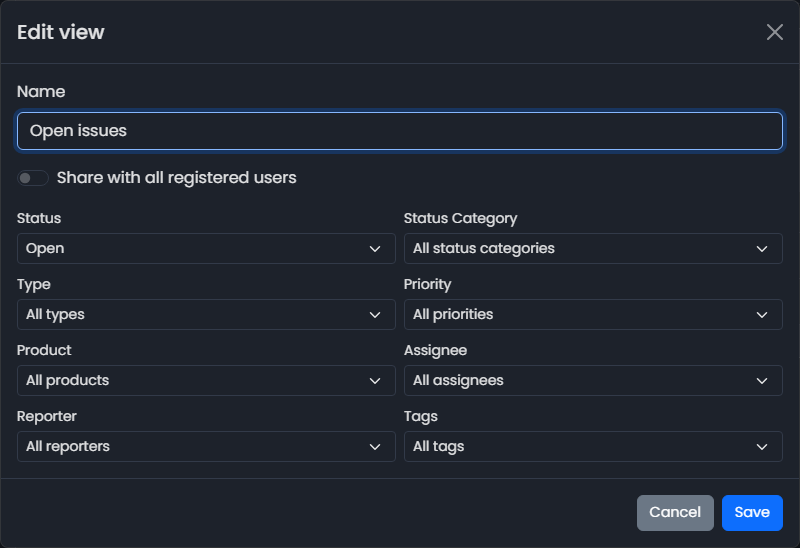
If filter values of the view do not exist anymore, the edit dialog tells you and leaves them out. Click Save to update the view.
2FA tab
Set up two factor authentication with an authenticator app, or disable it again (this needs your password). See Two Factor Authentication.
Options tab
| Option | Description |
|---|---|
| Language | The language of the interface (English, German, French, Spanish) or the system default. Saved in your profile, so it applies on every browser you log in with |
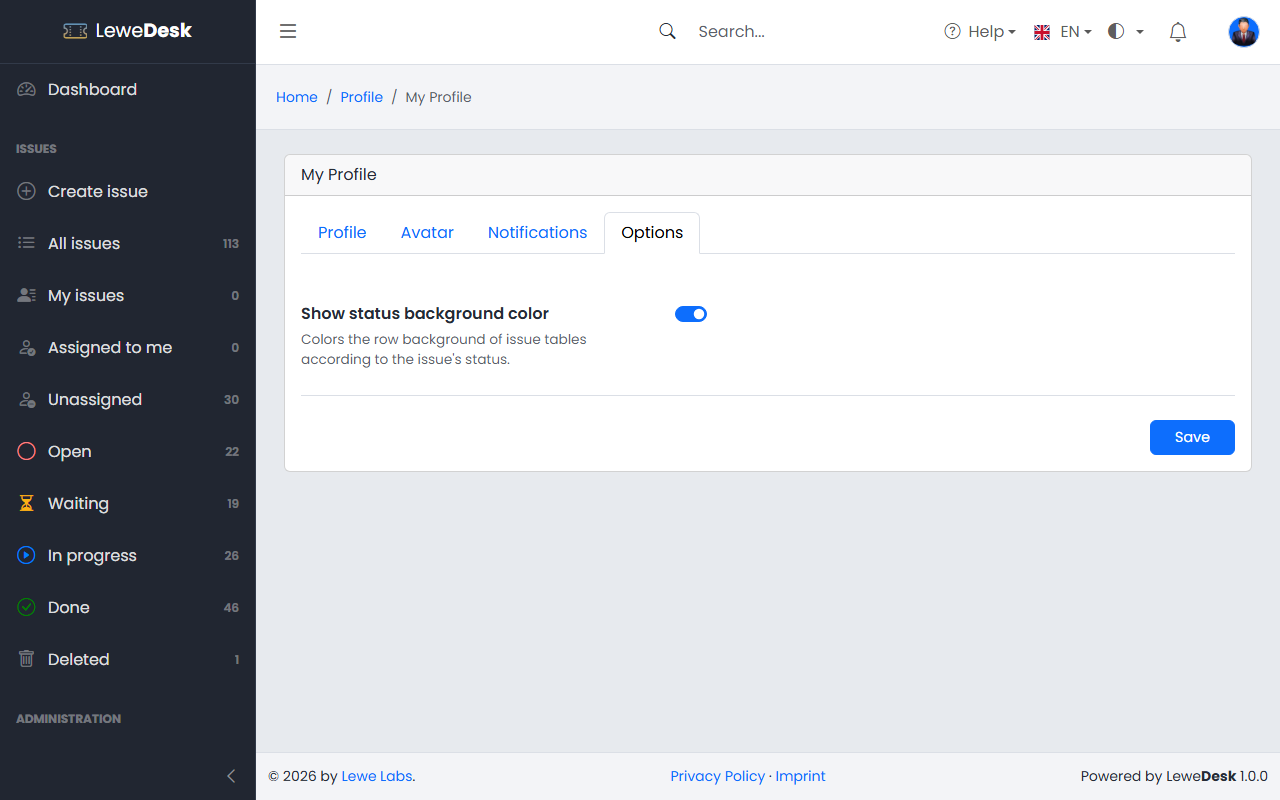
| Show status background color | Colors the row background of issue tables according to the issue's status |