List Issues
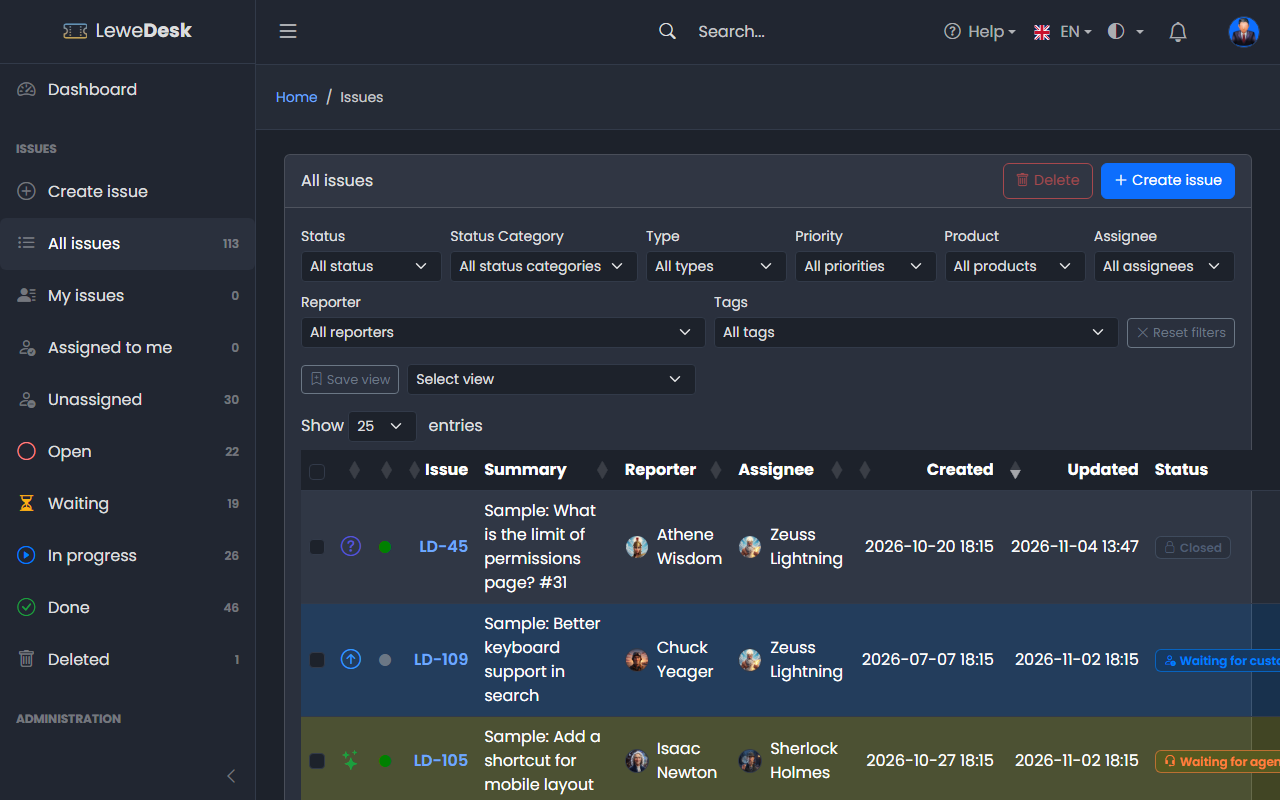
The issue list shows the issues you may see. Click an issue key to open the issue.
Columns
| Column | Description |
|---|---|
| (checkbox) | Selects the issue for bulk actions (only for users who may delete issues) |
| (icon) | Icon of the issue type |
| (icon) | Priority of the issue as a colored icon. Move the mouse over it to see the name. Click the column header to sort by priority (Critical first). |
| Issue | The issue key, e.g. LD-123 |
| Summary | Title of the issue |
| Reporter | Who created the issue |
| Assignee | Who works on it, or Unassigned |
| Created | Date and time of creation |
| Updated | Date and time of the last change. The list is sorted by this column, newest first. |
| Status | Current status |
| SLA | The most urgent SLA timer of the issue (support team only, see SLA) |
Click a column header to sort. Each row gets the background color of the issue's status. You can turn this off in your profile (Options).
Quick views
The sidebar offers quick views. The number shows how many issues the view holds.
| View | Shows |
|---|---|
| All issues | All issues you may see |
| My issues | Issues you reported (logged in users) |
| Assigned to me | Issues assigned to you (logged in users) |
| Unassigned | Issues nobody is assigned to |
| Open | Issues of the status category Open |
| Waiting | Issues of the status category Waiting |
| In progress | Issues of the status category In progress |
| Done | Issues of the status category Done |
| SLA breached | Issues with a breached SLA timer (users with view_sla, while the license includes SLA) |
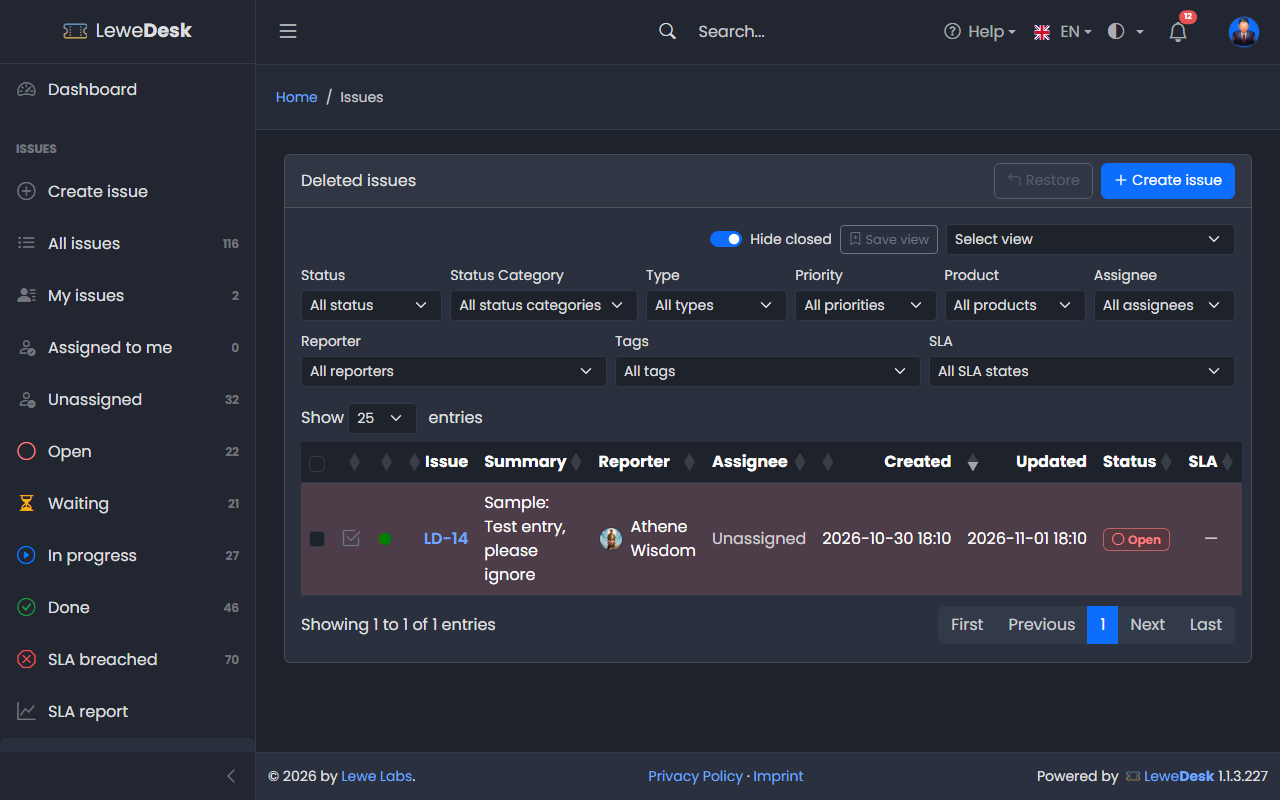
| Deleted | Deleted issues (only for users who may delete issues) |
Filters
Above the table you can narrow the list down by Status, Status category, Type, Priority, Product, Assignee, Reporter and Tags. The support team also has the filter SLA (breached, at risk, due today, on track, paused). Filters combine with the quick view. Show entries sets the page size.
The Hide closed switch is on by default and leaves out the issues with the status Closed, so that the list shows what still needs attention. Turn it off to see them as well. It has no effect when you choose a status in the Status filter. In the quick view Done it starts turned off.
Click Reset filters to remove all filters. This also sets Hide closed back to its starting position.
Custom views
Logged in users can save a combination of filters as a custom view and use it again later. Visitors who are not logged in do not see the buttons described here.
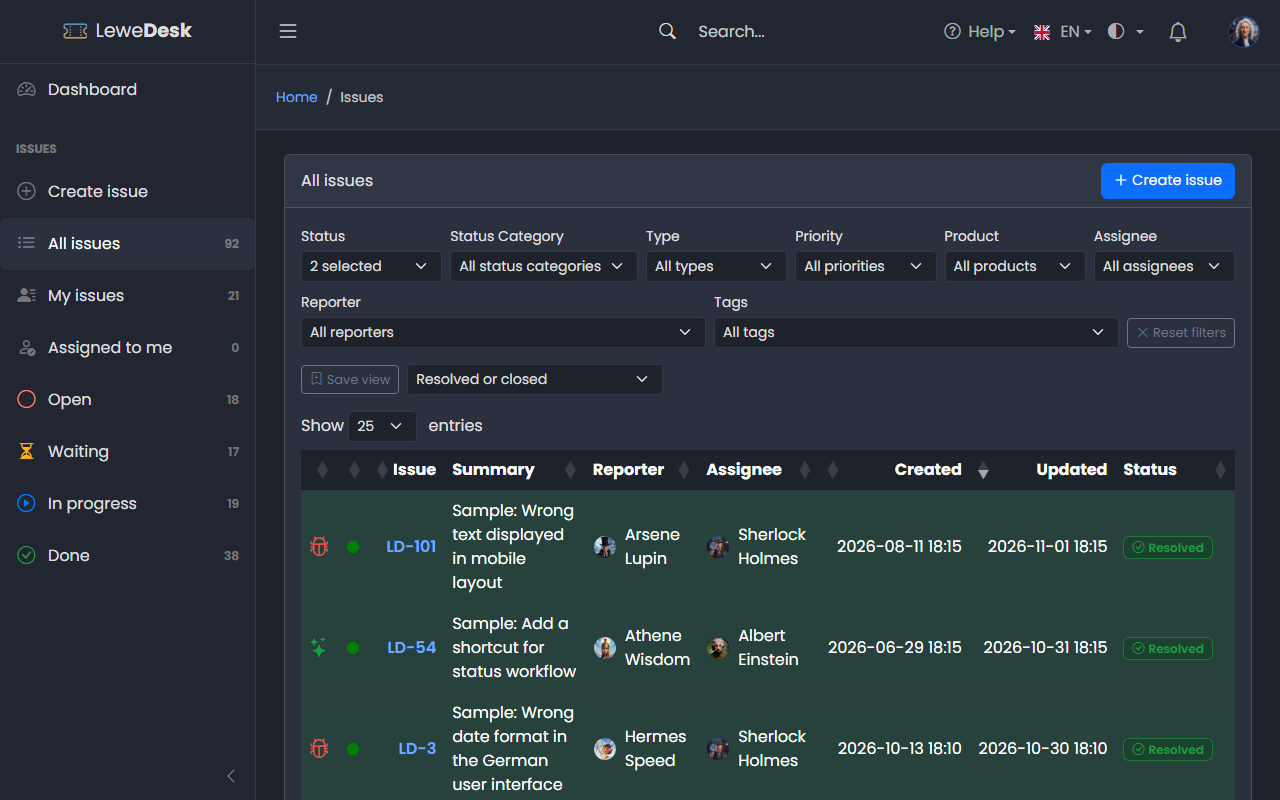
Under the filters you find the Save view button and the Select view list.
Save a view
- Set the filters you want (Status, Status category, Type, Priority, Product, Assignee, Reporter, Tags).
- Click Save view.
- Enter a Name (up to 100 characters). Switch on Share with all registered users if other users should be able to use the view as well. A view is private by default.
- Click Save.

A view stores these eight filters only. The quick view, the search term, the sort order and the page size are not part of it. You may save a view without any filter. It then shows all issues.
If you already have a view with the same name (upper and lower case do not matter), LeweDesk asks whether you want to overwrite it with the current filters.
Use a view
Choose a view in Select view. Your own views are listed first, sorted by name, then a separator and the views other users have shared with you. A shared view shows the name of its owner, for example Unassigned (Athene Wisdom).
The filters are replaced by the filters of the view and the list is reloaded. The address of the page contains the view (customview=...), so you can bookmark it. As soon as you change a filter or click Reset filters, the list no longer shows the view and Select view is reset.
If a view contains a filter value that does not exist anymore (for example a tag that was deleted), the value is ignored. The owner of the view gets a message and can repair the view in the profile.
Only the owner can change or delete a view. Shared views of other users can be used, not changed.
Delete or restore several issues
Users who may delete issues (Agents and Administrators) see a checkbox in front of every row. Tick the issues you want to change, or tick the box in the table header to select all issues of the page. Then click Delete above the table and confirm.
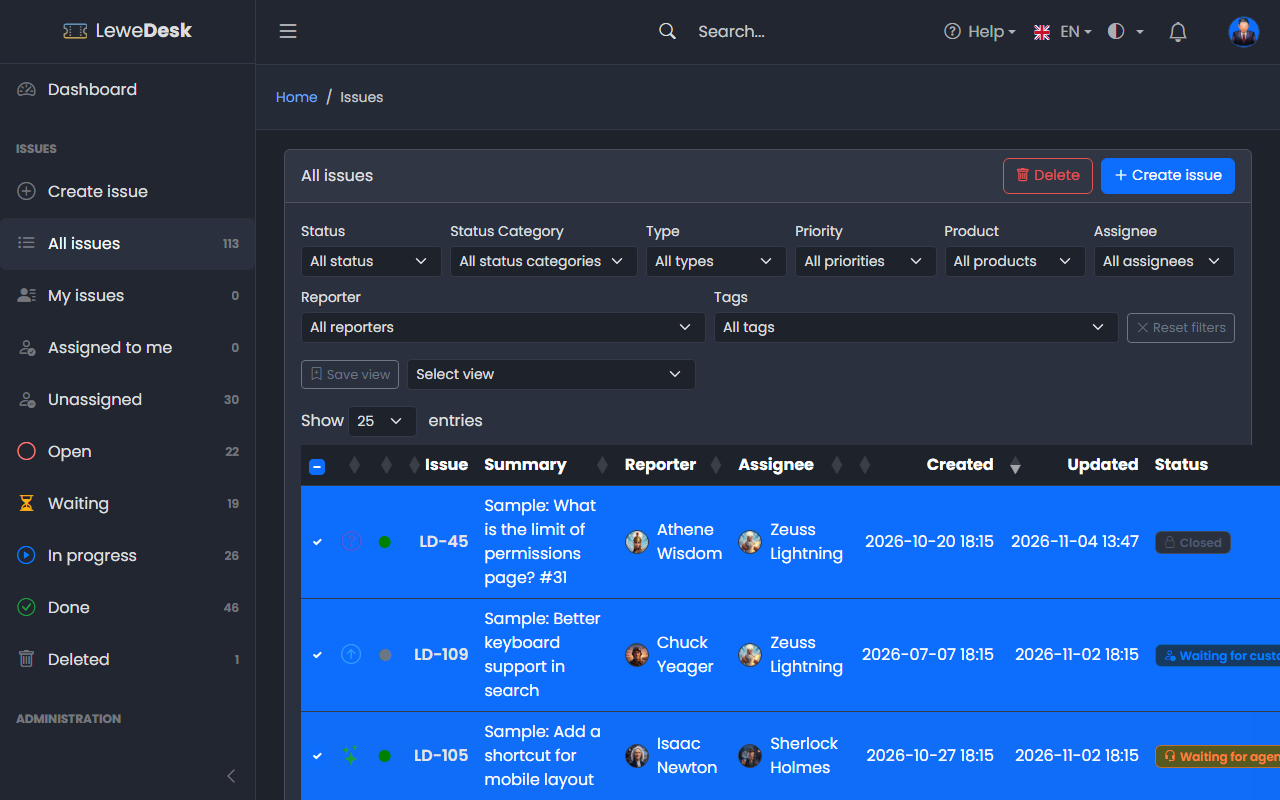
The issues are moved to the Deleted quick view. Deleting works one issue at a time in the background, so the same rules apply as for Delete issue on a single issue, and each issue gets its entry in the history. A message tells you how many issues were deleted and how many could not be changed.
In the Deleted quick view the Delete button is replaced by Restore. Select the issues and click Restore to bring them back.
Search
Type a term into the Search field in the top bar and press Enter. LeweDesk searches the summary, the description, the product and the comments of the issues you may see. Internal comments are only searched for the support team.

The list title shows what you searched for. Click Reset filters to leave the search.