Issue Detail
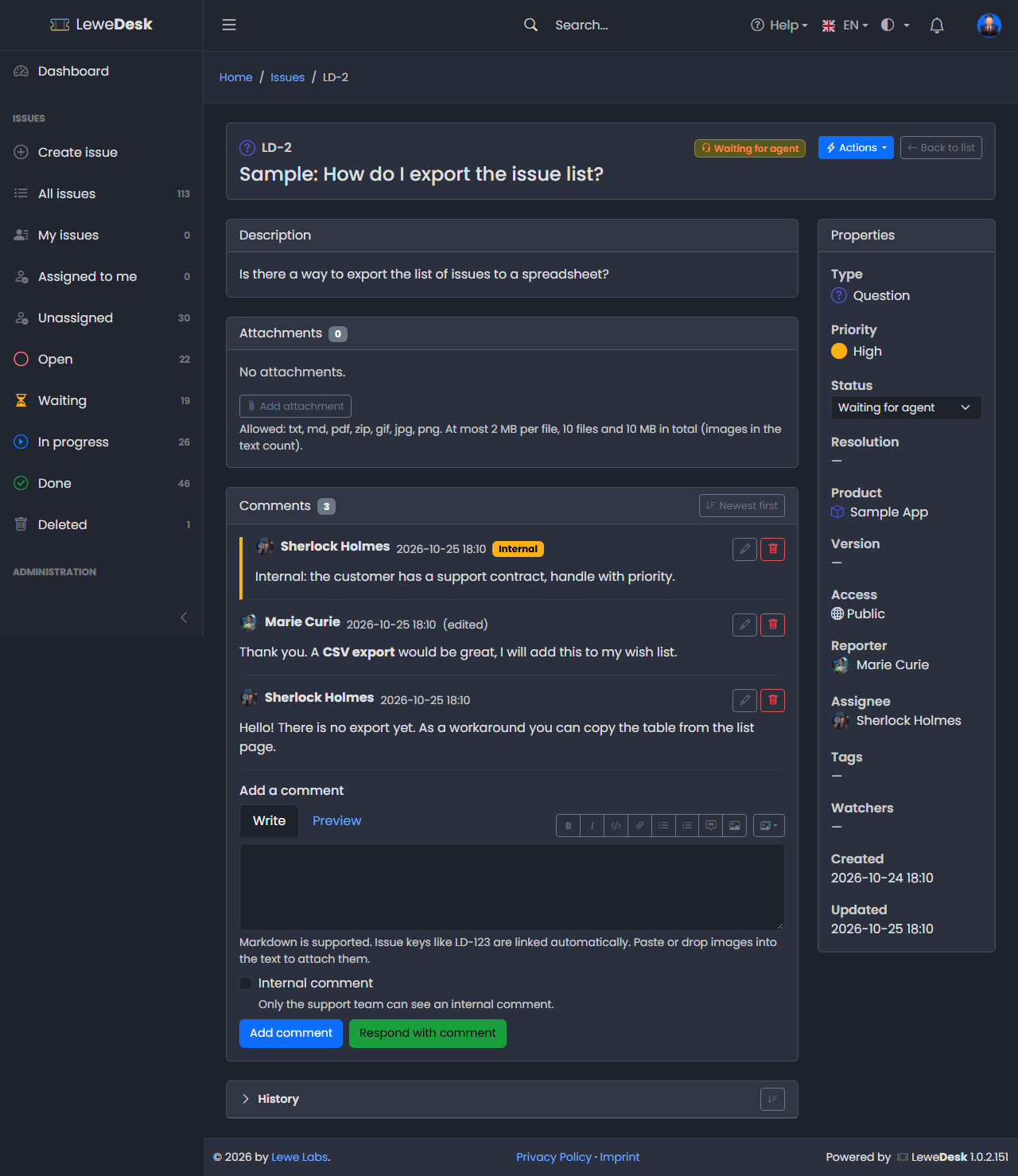
Click an issue key in the list to open the issue.
Header
The header shows the issue type icon, the key, the summary and the current status (and the resolution, once resolved). The Actions button offers everything you may do with the issue (see Issue Actions). Back to list returns to the issue list.
Description
The description as written by the reporter, rendered from Markdown. Issue keys in the text are links.
Attachments
Files attached to the issue. See Attachments.
Comments
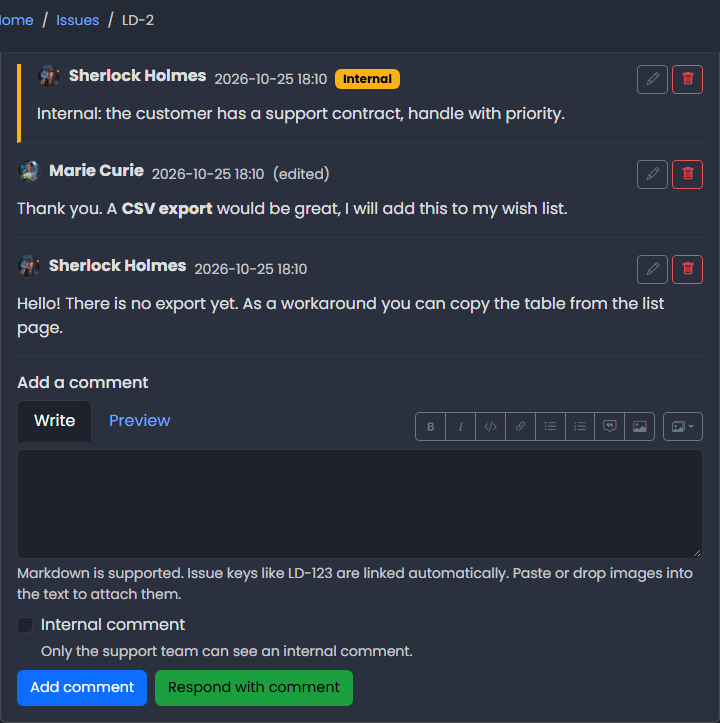
The conversation about the issue, and the form to add a comment. See Comments.
History
A collapsible table of all changes. See History.
Service level (SLA)
For the support team, the panel Service level (SLA) shows the due time, the remaining time and the state of the first response and the resolution. See SLA.
Properties
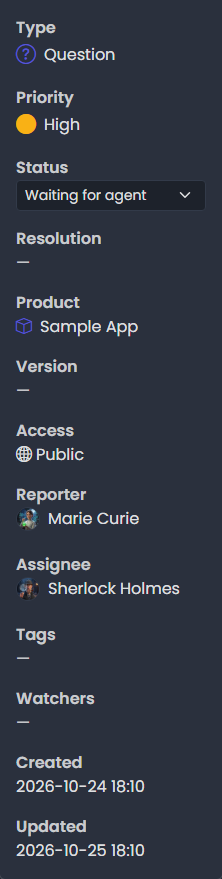
The panel on the right shows type, priority, status, resolution, product, affected version, fixed version, access, reporter, assignee, tags, watchers, and the dates created and updated. The product is shown with its icon in the color of the product. A version is shown with its status (planned, in development, released or archived). The fixed version is a link to the release notes of that version.
Change the status
For the support team (users who may change the issue status) the status in the properties is a drop-down list. Select a status to change it right away. The change is added to the history.
If the status belongs to the category Done, LeweDesk asks for the resolution first.
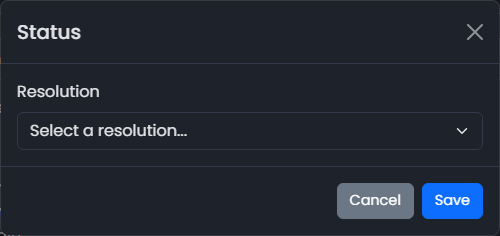
Select the resolution and click Save. If you cancel the dialog, the status stays as it was. Everybody else sees the status as a label.
The drop-down changes the status directly and bypasses the normal flow of the Issue Actions. For the usual steps (respond, resolve, close, reopen) use the Actions menu.
If you open an issue that does not exist, or that you may not see, LeweDesk shows the same message in both cases: The issue does not exist, or you are not allowed to see it.